Start here
Your first bot
Meet MOSS, the bot you start with, make a bot of your own, talk to it, give it a routine, and see what it is doing.
Not released yet. This page describes MOSS as it is being built for the first release.
Meet MOSS#
When the setup guide is done, MOSS opens on a conversation with a bot called MOSS: the coral one, the same face as the app's icon. She is an ordinary bot, with the same tools as any other. She is simply the first one you meet.
Say hello, or give her a job straight away.
Make a bot of your own#
- Press + at the top of the list of bots.
- Type a name.
- Pick the model it should use, from the ones you have set up.
- Press Make.
The bot's face is made from its name: a shape, a colour, a pair of eyes and a temper. The same name always makes the same face, on every computer. If you'd like a different look, you can pin any of the four in the bot's settings.
A new bot uses your default model unless you pick another. If no model is set up yet, MOSS says so, and you add one in Settings first.
Talk to it#
Type in the box at the bottom, which says Message and the bot's name, and press Return. Press + in the box to attach files.
Each bot has one conversation, which goes on for as long as the bot does, like texting a person. You never start a new chat with it: when the conversation gets long, the bot sums up what came before and carries on.
Your message interrupts. If the bot is in the middle of something when you write, it stops that step at once and reads what you said. Work it has running in the background, such as a routine or a coding agent it started, carries on.
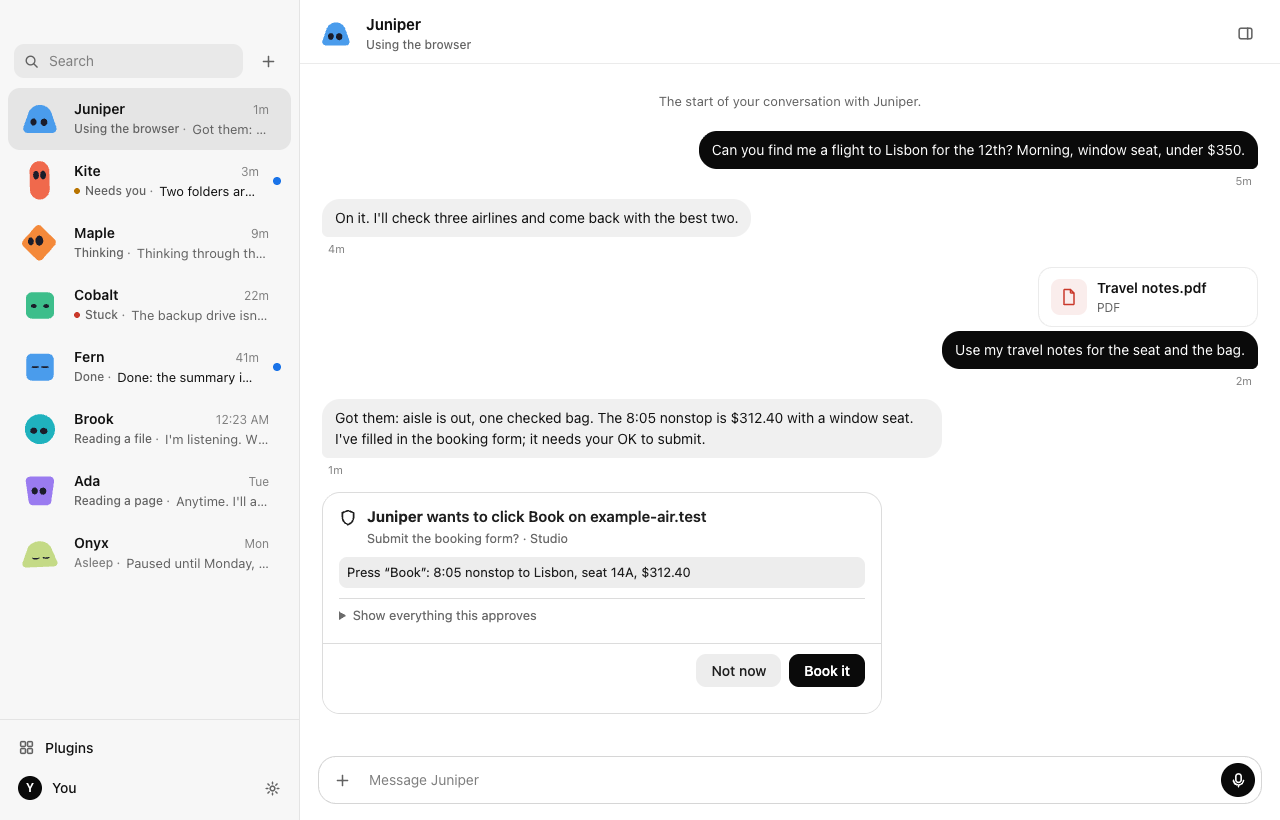
One line says what it's doing. While the bot works, a single line under the conversation says what it's doing right now: Searching the web, Reading a file, Running commands, Using the browser. The same words show beside its face in the list, with the last thing it said.
When it needs you#
Before a bot does something its level doesn't let it do alone, such as deleting files or pressing Book on a website, it asks on a card. The card shows in its conversation. If you're looking at another bot, it shows in a strip at the top of the window, and the bot's row says Needs you. If you're in another app, it shows on the island at the top of your screen.
Approval cards and levels explains the cards and how much a bot may do on its own.
Give it a routine#
Ask in your own words: "Every weekday at 9, sort my Downloads folder and tell me what you moved." The bot writes itself a routine. Each time it runs, it works in a side thread of its own, so it never gets in the way of your conversation, and posts a short result into the conversation when it's done.
A routine can also start when a webhook arrives. A routine runs at the level of the computer it runs on, unless you OK a higher one when the bot asks.
The side panel#
The button at the top right of the conversation opens the bot's side panel.
Its screen. While the bot uses its browser, the panel shows the page live. In the first release you can watch it, not take it over.
Its routines. Each routine with its schedule, and whether it's on. You can run one now, pause it, or resume it.

Its memory#
Each bot keeps notes for itself in a memory folder of its own: an index file, MEMORY.md, that links to the rest. It reads and writes them like any other files; there is no special memory tool. Its memory goes with it to your other computers.
You can read everything a bot keeps in its settings, under Memory. To change what it remembers, tell it.
Its settings#
Open a bot's settings from the side panel's settings button, or from your account at the bottom of the list. There you can change its model, pin its face, and read its memory.
When you're done with a bot, Archive puts it away. Nothing is deleted: its conversation, memory and routines come back with it when you bring it back from Settings.
Deleting a conversation or a bot removes it from this computer only, not from your other computers.
Talking out loud#
The microphone button in the message box works once a voice is set up with your own key for its provider; MOSS comes with a voice plugin for Fish Audio. Hold the button while you talk, or hold Ctrl+Shift+Space. With a voice set up, the bot's replies are spoken too, unless you turn Speak replies off in the voice plugin's settings.
Without a voice, the button stays dimmed and says why, and everything works in text.